
Documentation Index
Fetch the complete documentation index at: https://docs.motionstudiosfivem.com/llms.txt
Use this file to discover all available pages before exploring further.
Install (or update) dependencies
oxmysql
Download and install dependency
screenshot-basic
Download and install dependency
Login to your CFX Portal & Download MS-Reports
You can login and download your assets here.
Ensuring Asset(s)
To make sure the asset(s) starts & works properly we need to make sure all asset(s) start in the correct order in your
server.cfg. Below you can find an example of how it can look like.Screenshots
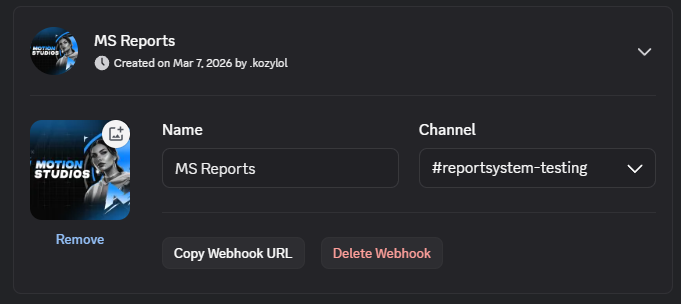
To make screenshots work, you have to configure it. Currently we are only supporting discord in order to save & retrieve screenshots. Follow the guide below in order to activate screenshots in your script.
Upon completion, do not delete the
SQL folder or any .sql files or you will experience errors